
Nine steps in
From opening the app to sending your first review link. Every screenshot below is real, and the ring marks exactly what to press. On first launch the tour runs through these on the interface by itself; come back here whenever you forget a step.
One thing up front: the browser version only does the ten-platform check — no live notes. Notes, reports and the MCP endpoint all live in the desktop app.
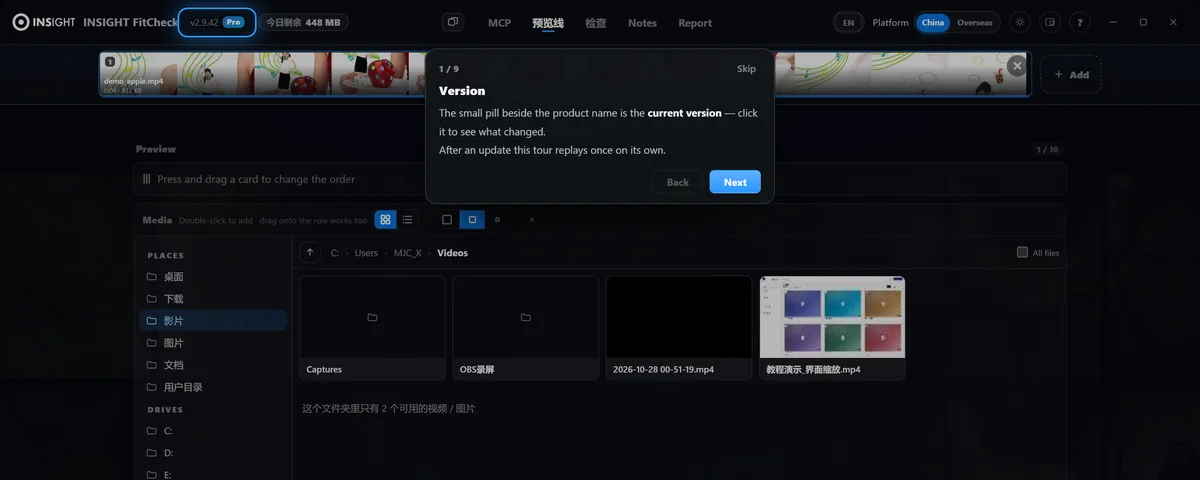
Version
The small pill beside the product name is the current version — click it to see what changed.
After an update the tour replays once on its own.
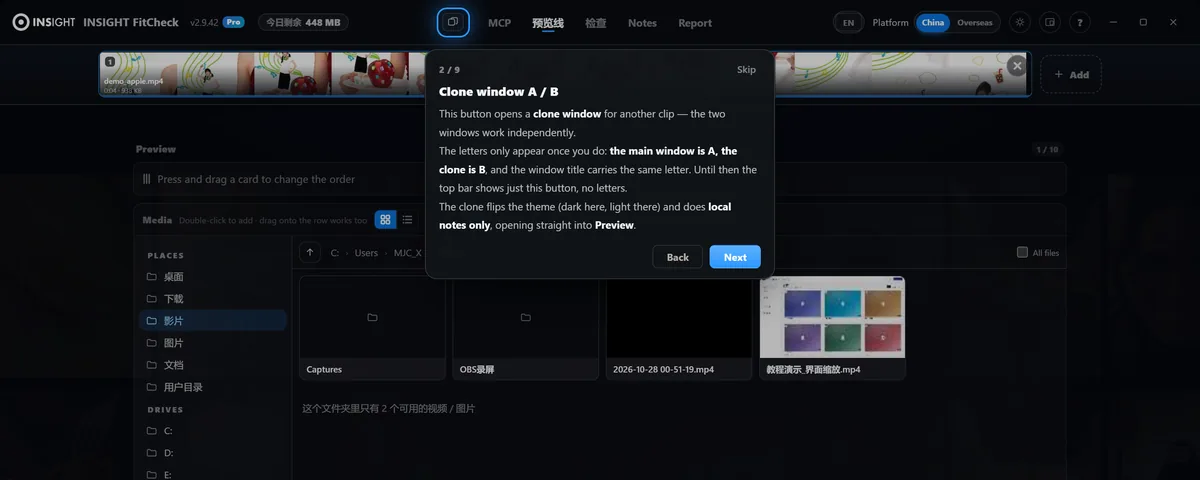
Clone window A / B
This button opens a clone window for another clip — the two windows work independently.
The letters only appear once you do: the main window is A, the clone is B. Until then the top bar shows just this button, no letters.
The clone flips the theme and does local notes only, opening straight into Preview.
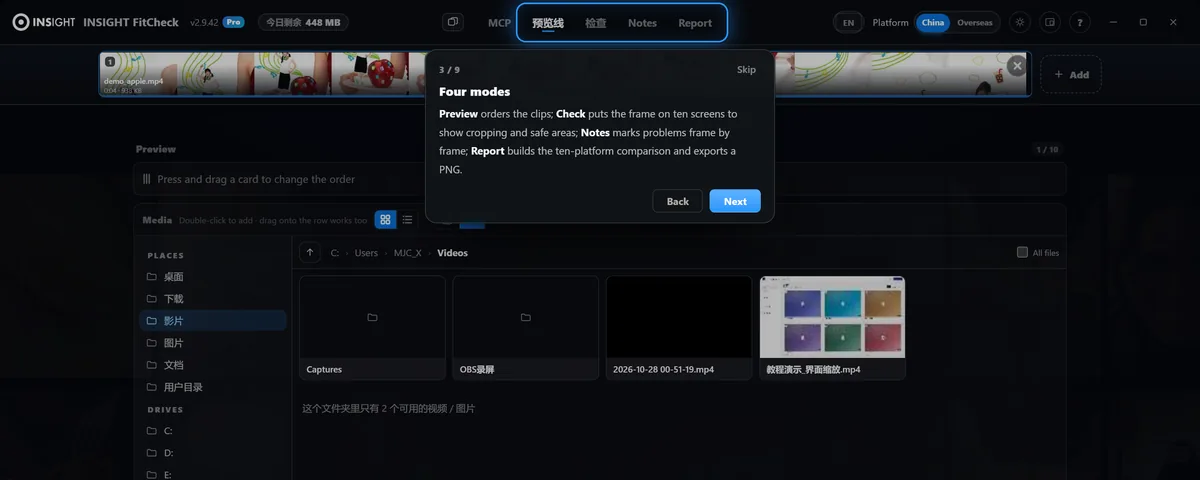
Four modes
Preview orders the clips; Check puts the frame on ten screens to show cropping and safe areas; Notes marks problems frame by frame; Report builds the ten-platform comparison and exports a PNG.
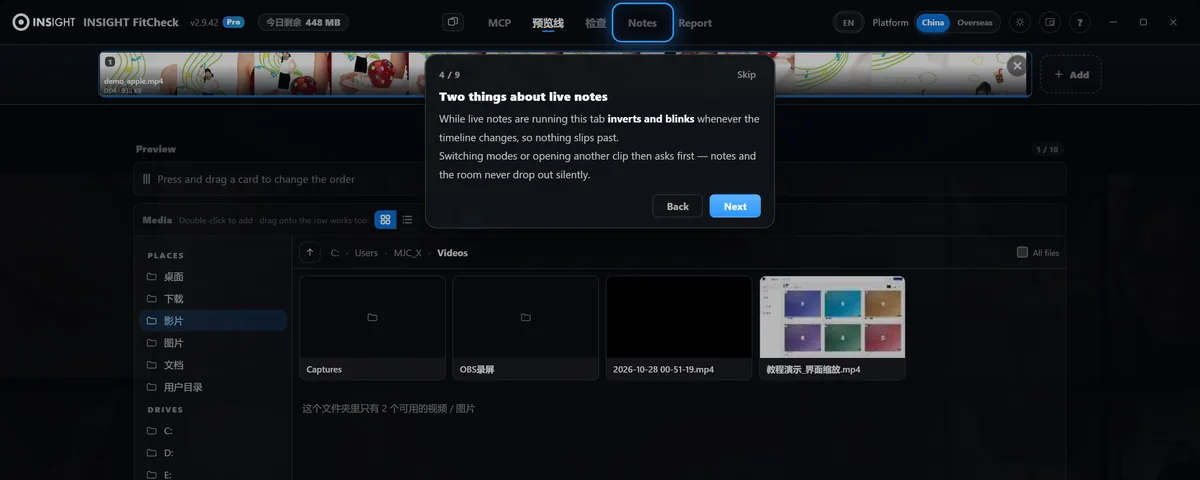
Two things about live notes
While live notes are running this tab inverts and blinks whenever the timeline changes, so nothing slips past.
Switching modes or opening another clip then asks first — notes and the room never drop out silently.
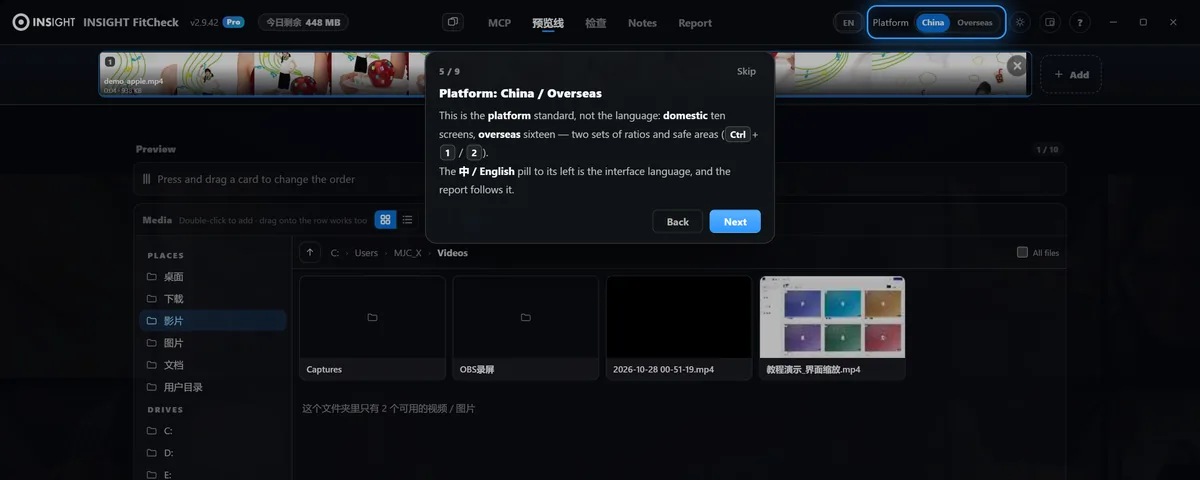
Platform: China / Overseas
This is the platform standard, not the language: domestic ten screens, overseas sixteen — two sets of ratios and safe areas (Ctrl+1 / 2).
The 中 / English pill to its left is the interface language, and the report follows it.
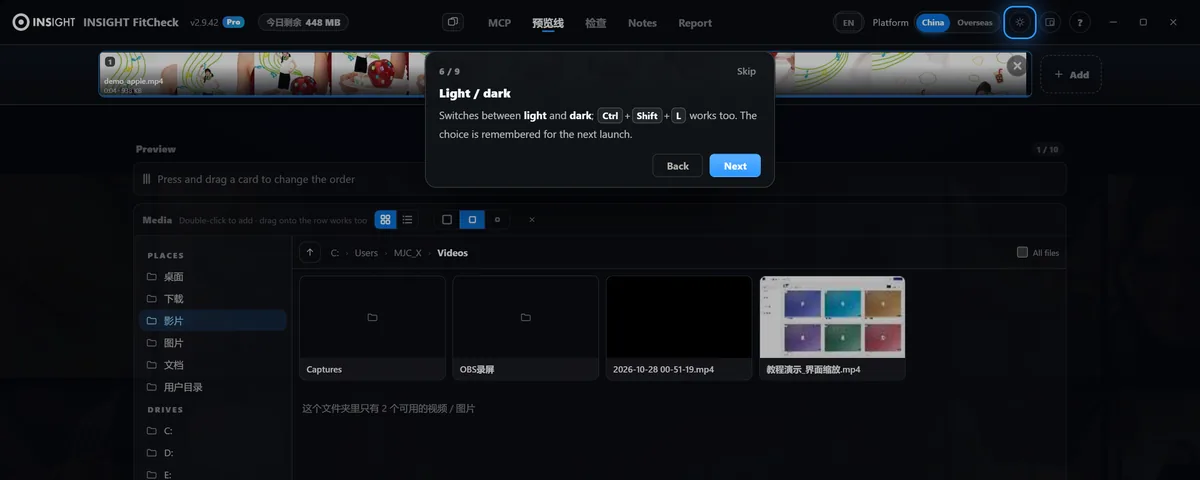
Light / dark
Switches between light and dark; Ctrl+Shift+L works too. The choice is remembered for the next launch.
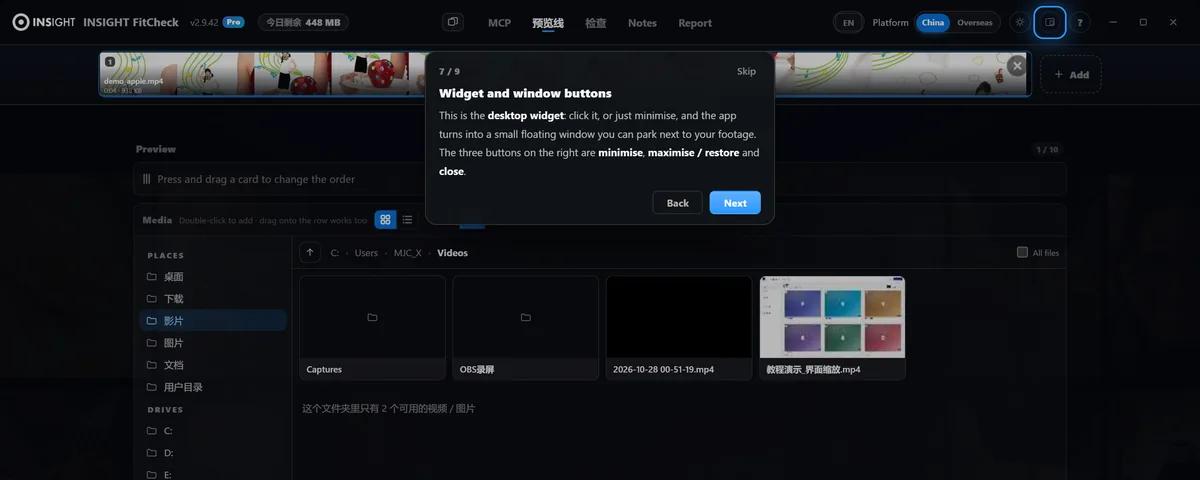
Widget and window buttons
This is the desktop widget: click it, or just minimise, and the app turns into a small floating window you can park next to your footage.
The three buttons on the right are minimise, maximise / restore and close.
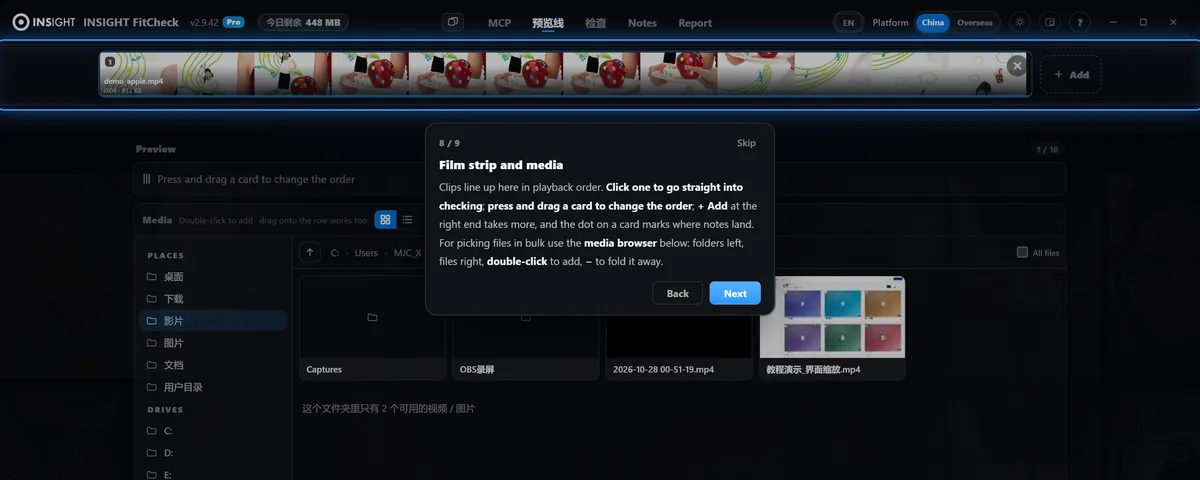
Film strip and media
Clips line up here in playback order. Click one to go straight into checking; press and drag a card to change the order; + Add at the right end takes more, and the dot on a card marks where notes land.
For picking files in bulk use the media browser below: folders left, files right, double-click to add, − to fold it away.
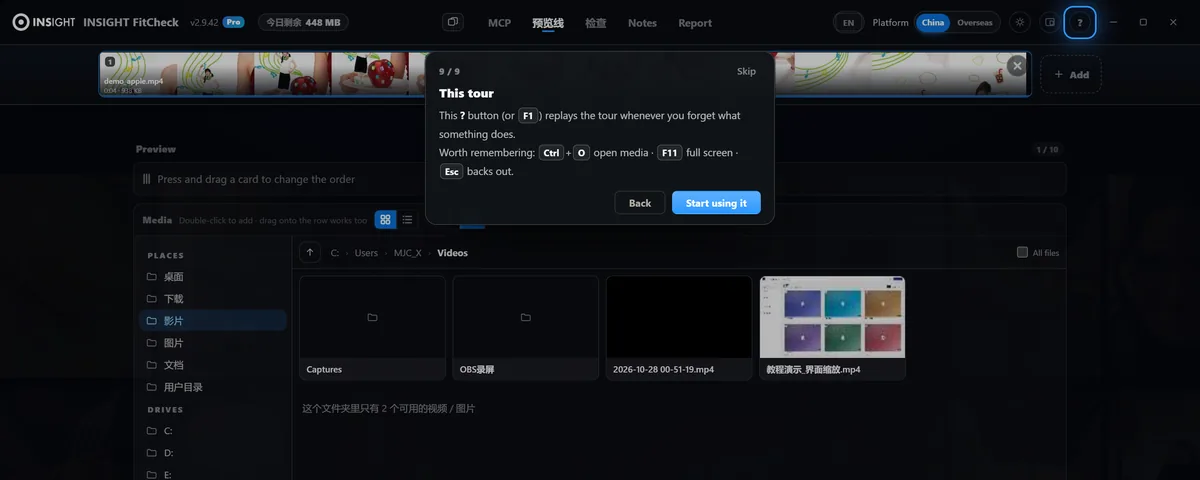
This tour
That is this ? button (or F1): it replays the tour whenever you forget what something does.
Worth remembering: Ctrl+O open media · F11 full screen · Esc backs out.
That is enough to start. Ten-platform check → live notes → report is the main path; everything else is optional.